Quick start
What you'll accomplish
In this tutorial, you'll create a functional password reset page that lets users reset their passwords without accessing wp-login.php. The entire setup takes about 15 minutes and requires no coding.
By the end, you'll have:
- A custom password reset page with the
[reset_password]shortcode - Configured plugin settings pointing to your new page
- Tested the complete password reset flow from request to completion
Prerequisites
Before starting, ensure you have:
- Frontend Reset Password plugin installed and activated (see Installation guide)
- WordPress admin access
- Ability to create and edit pages
- Access to an email account for testing
Step 1: Create a password reset page
Create a new page to host your password reset form.
- In your WordPress admin, navigate to Pages > Add New
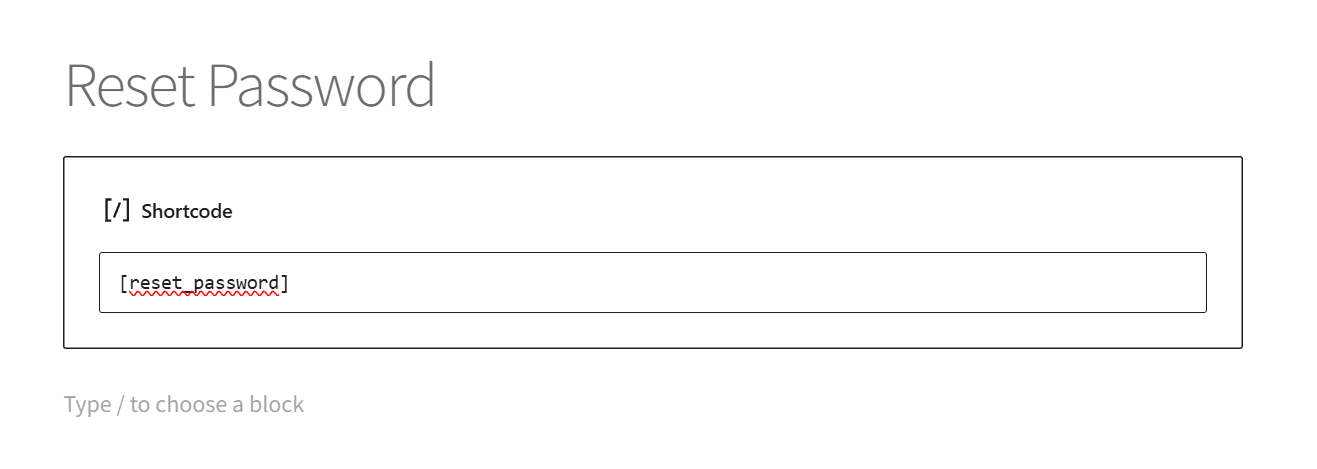
- Enter a page title such as "Reset Password" or "Forgot Password"
- In the page content area, add the shortcode:
[reset_password] - Click Publish
- Note the page URL for testing later
If you're using a page builder like Elementor or Divi, add the shortcode using a shortcode block or module. The plugin works with all major page builders.
Step 2: Configure plugin settings
Tell the plugin which page contains your shortcode.
- Navigate to Settings > Frontend Reset Password
- In the General tab, locate the Reset Password Page dropdown
- Select the page you created in Step 1
- Click Save Changes at the bottom of the page
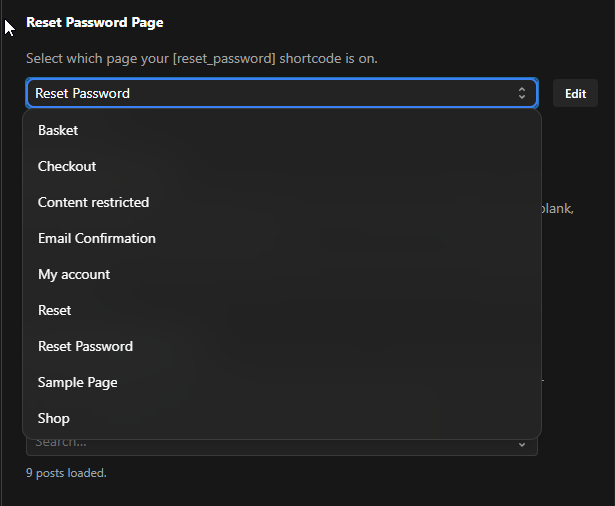
This setting is required. Without it, WordPress will continue using the default wp-login.php page for password resets.
Step 3: Customize form text (optional)
While the plugin works with default text, you can customize the user experience.
- Still in Settings > Frontend Reset Password > General tab
- Customize these fields if desired:
- Form Title: Change "Reset Password" to match your site's tone
- Lost Password Message: Modify the instruction text users see first
- Button Text: Change the submit button label
- Click Save Changes
You can return to customize email templates and security settings later. For now, the defaults work fine for testing.
Step 4: Test the password reset flow
Verify everything works by completing a full password reset.
Request a reset link
- Log out of WordPress (or open an incognito/private browser window)
- Navigate to your password reset page
- Enter a valid username or email address
- Click the submit button
- Verify you see a success message: "Check your email for the confirmation link"
Check your email
- Open the email inbox for the account you entered
- Look for an email with subject "Password Reset" (or your custom subject)
- Verify the email contains:
- Your username
- A reset link
- Clear instructions
If you don't receive an email within a few minutes, see Email not sending troubleshooting.
Set a new password
- Click the reset link in the email
- You'll be redirected to your password reset page
- The form now shows two password fields
- Enter your new password in both fields
- If you have security requirements enabled, watch the validation indicators turn green as you meet each requirement
- Click the submit button
- Verify you see a success message with a login link
Verify the new password works
- Click the login link (or navigate to your login page)
- Log in using your username and the new password you just set
- Confirm you can access your account
Verification checklist
Confirm your setup is working correctly:
- Password reset page displays the form (not the shortcode text)
- Submitting an email/username shows a success message
- Reset email arrives within 2-3 minutes
- Reset link redirects to your custom page (not wp-login.php)
- New password can be set successfully
- Login works with the new password
Common issues during setup
Shortcode displays as text
Problem: The page shows [reset_password] instead of the form.
Solution: Ensure the plugin is activated. Navigate to Plugins > Installed Plugins and verify Frontend Reset Password shows "Active" status.
Email doesn't arrive
Problem: No reset email is received after submitting the form.
Solution: This is common on localhost/local development. Test on a live server, or install an SMTP plugin like WP Mail SMTP. See Email troubleshooting for detailed solutions.
Reset link goes to wp-login.php
Problem: Clicking the email link redirects to the default WordPress login page.
Solution: Verify you selected the correct page in Settings > Frontend Reset Password > Reset Password Page. Save the settings again and clear any caching plugins.
What's next
Now that your basic setup is working, explore these features:
- Security settings - Require strong passwords with minimum length and character type requirements
- Email customization - Personalize reset emails with custom templates and sender information
- Template overrides - Create custom form designs that match your site's branding
- Styling and CSS - Customize the visual appearance of forms